
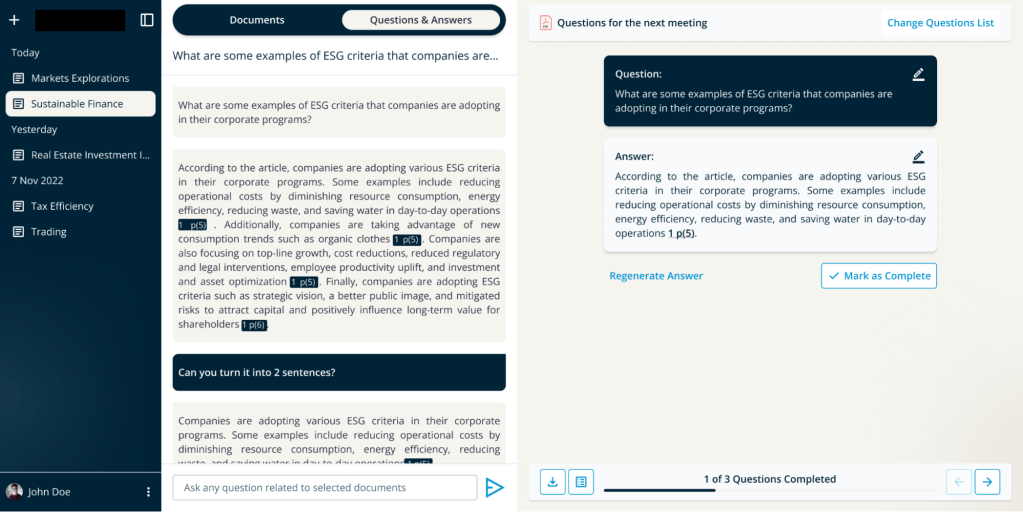
Design Phase
Research
In 2024, we spoke with the client to understand their problems and needs. They wanted an internal AI tool for Q&A based on the company’s documents. After learning about their requirements, we conducted a competitor analysis and found two similar apps: TLDR-This and ChatPDF.
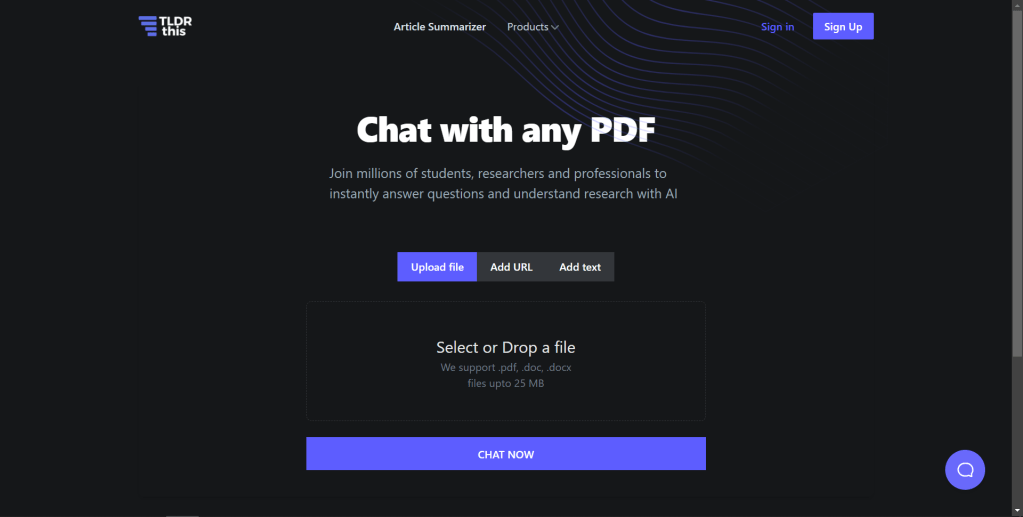
TLDR-This
ChatPDF
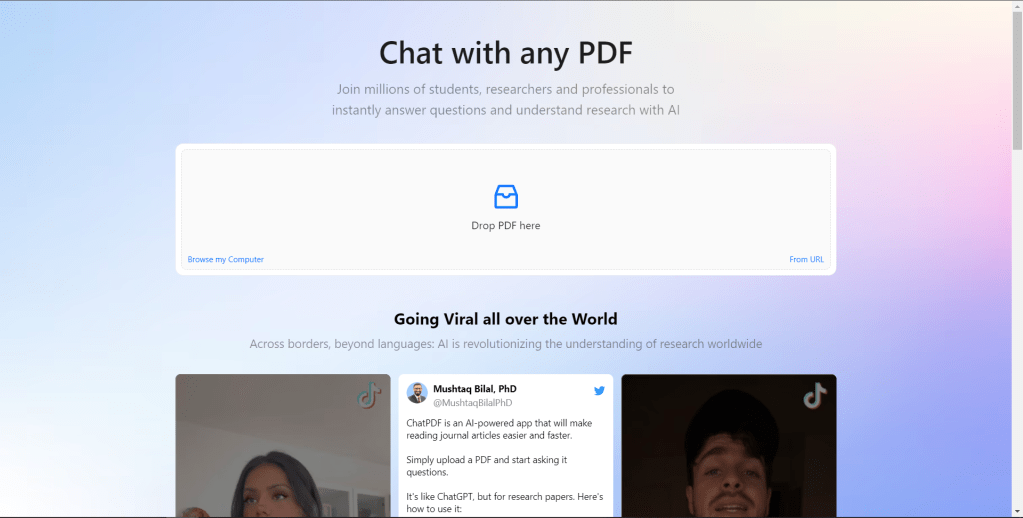
We identified three main weaknesses in these platforms:
- They only support one document per session, so the AI can’t answer questions based on multiple documents.
- Users must upload files manually, they can’t select documents from a cloud or database.
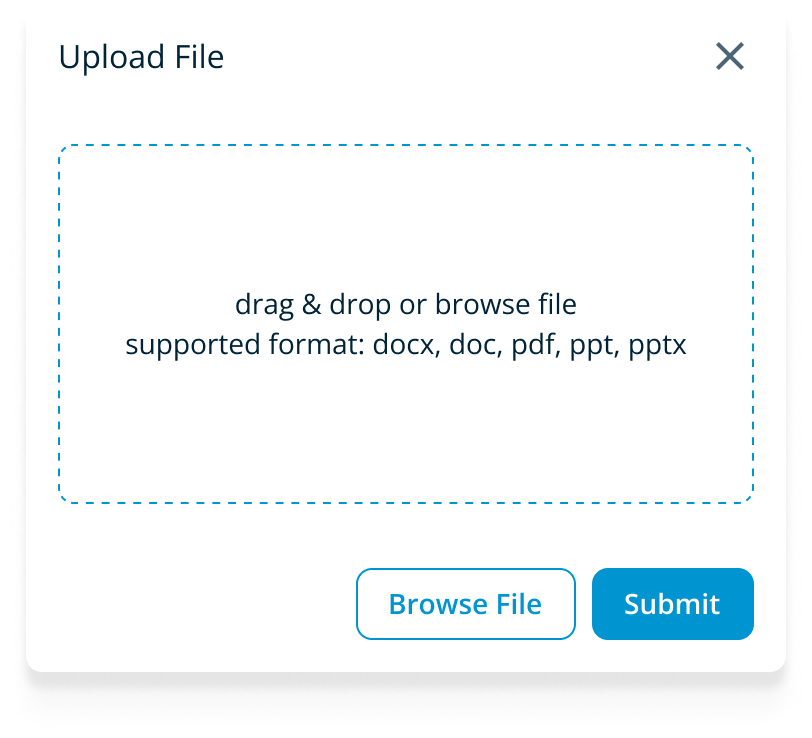
- Users can’t input questions directly from a document.
Based on this research, we need to ensure that:
- Users can upload more than one document per session.
- Users can select documents from the cloud or a database.
- Users can input questions directly from a document.
Design
Before building the app, we created a feature list. These are the features we included: uploading multiple documents, selecting multiple documents from the cloud or a database, adding or removing Q&A sessions, referencing documents in the AI’s answers, regenerating answers, and more.
The first thing we did was create a design system. A design system is a set of standards that manages design at scale by reducing redundancy and creating a shared language and visual consistency across different pages and channels (nngroup.com). For the PDF-AI app, we used Tailwind structure to develop the design system.
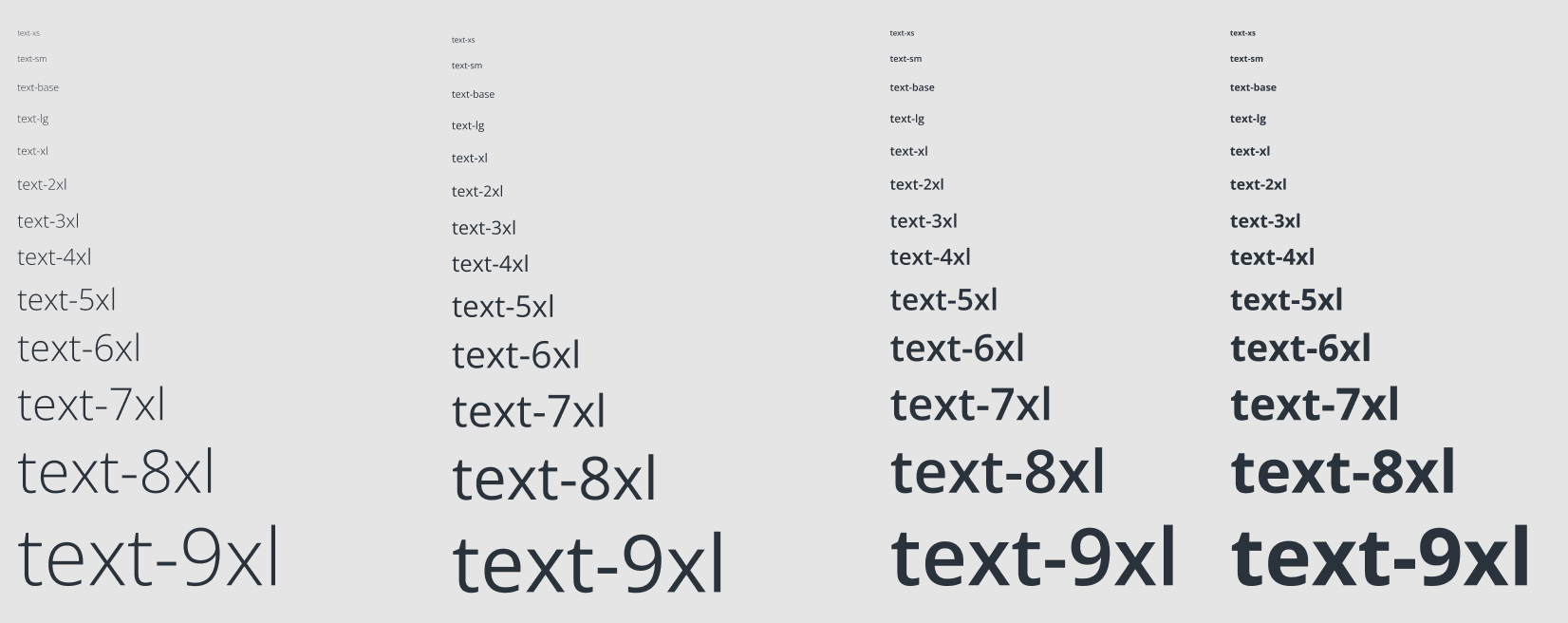




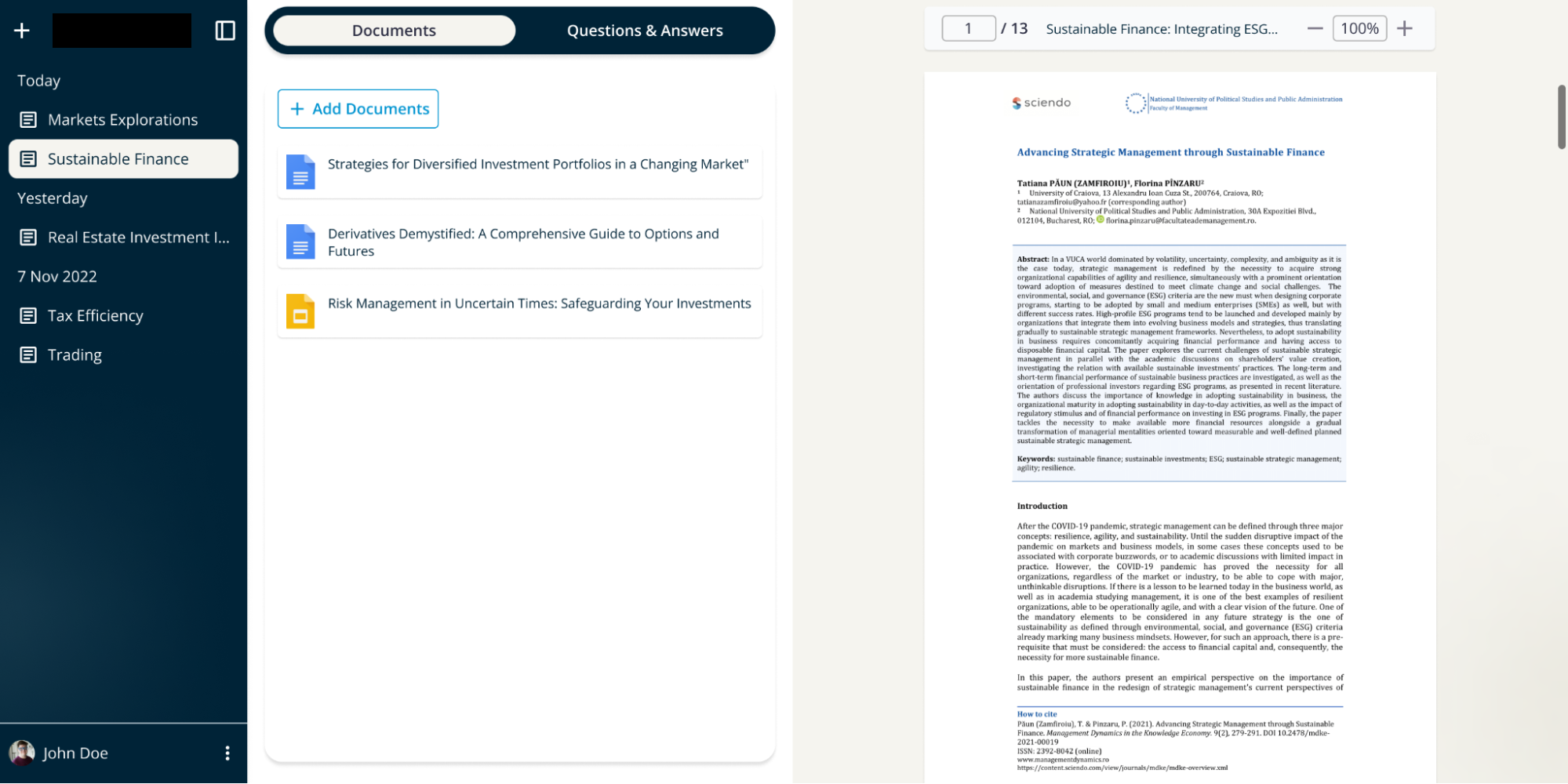
After designing the design system, we started the design process.
Document Page

| Part of Page | Design Reasoning |
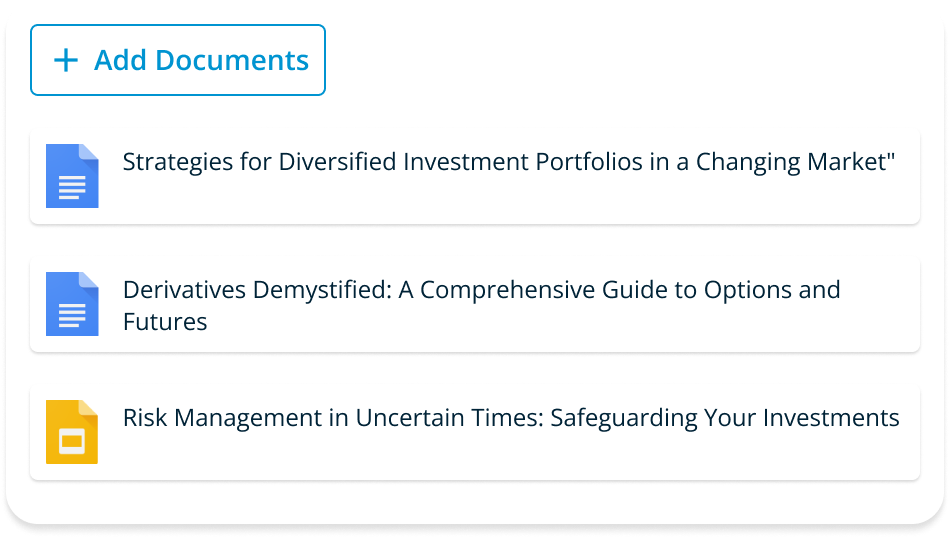 | Inform users that the AI will answer their questions based on the provided documents. |
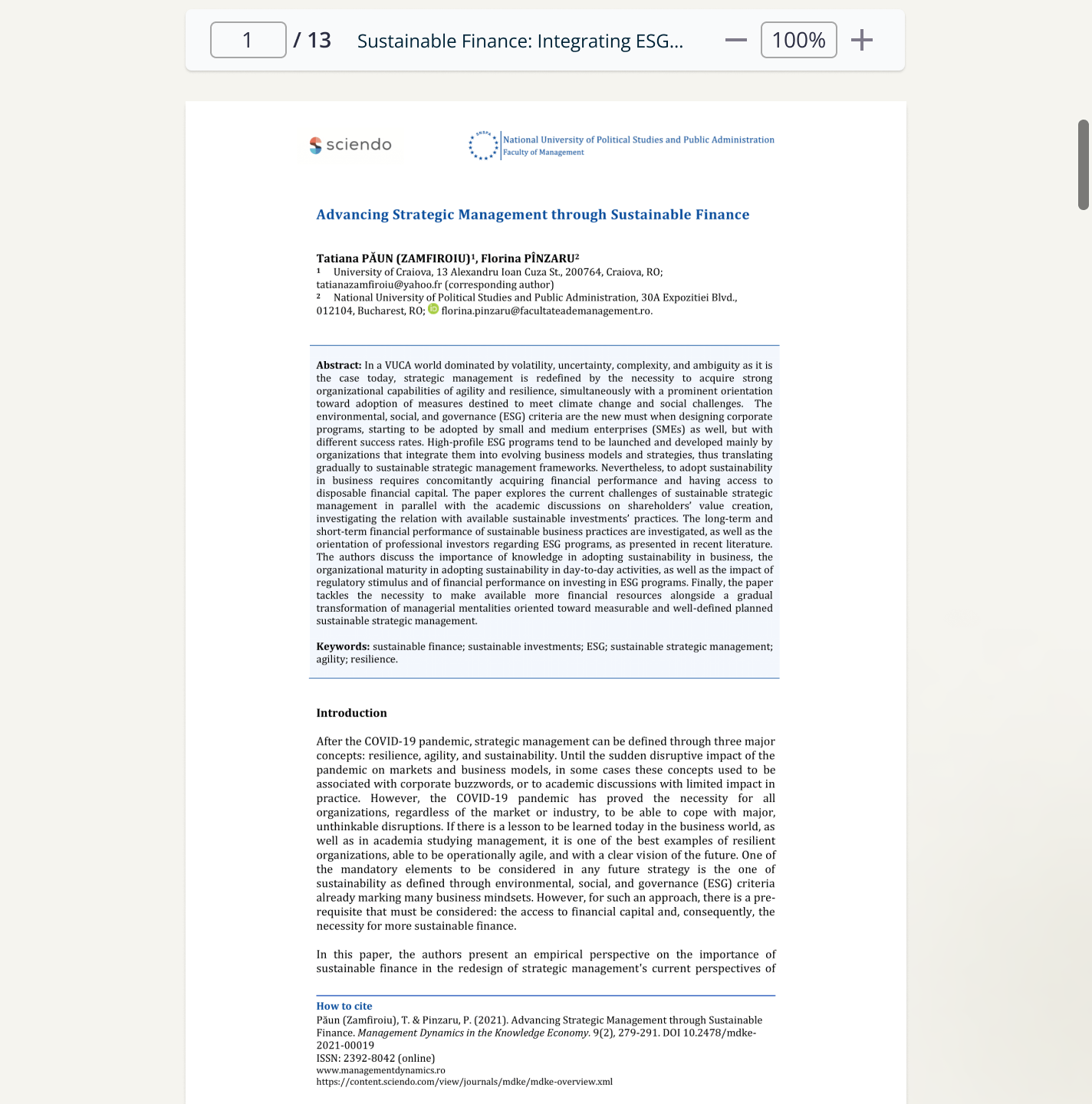 | The PDF viewer allows users to see the original text or document without needing to open it with another program. |
Question & Answers Feature
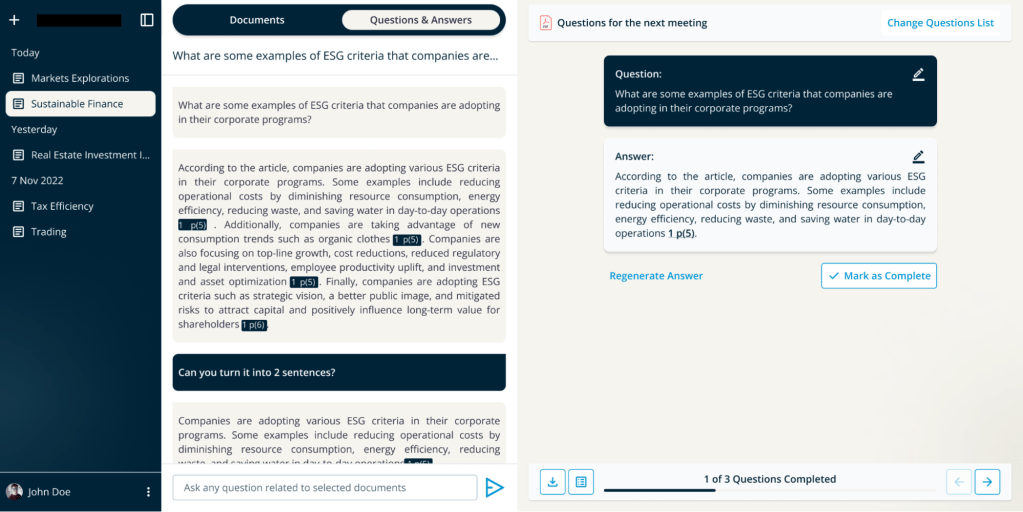
| Part of Page | Design Reasoning |
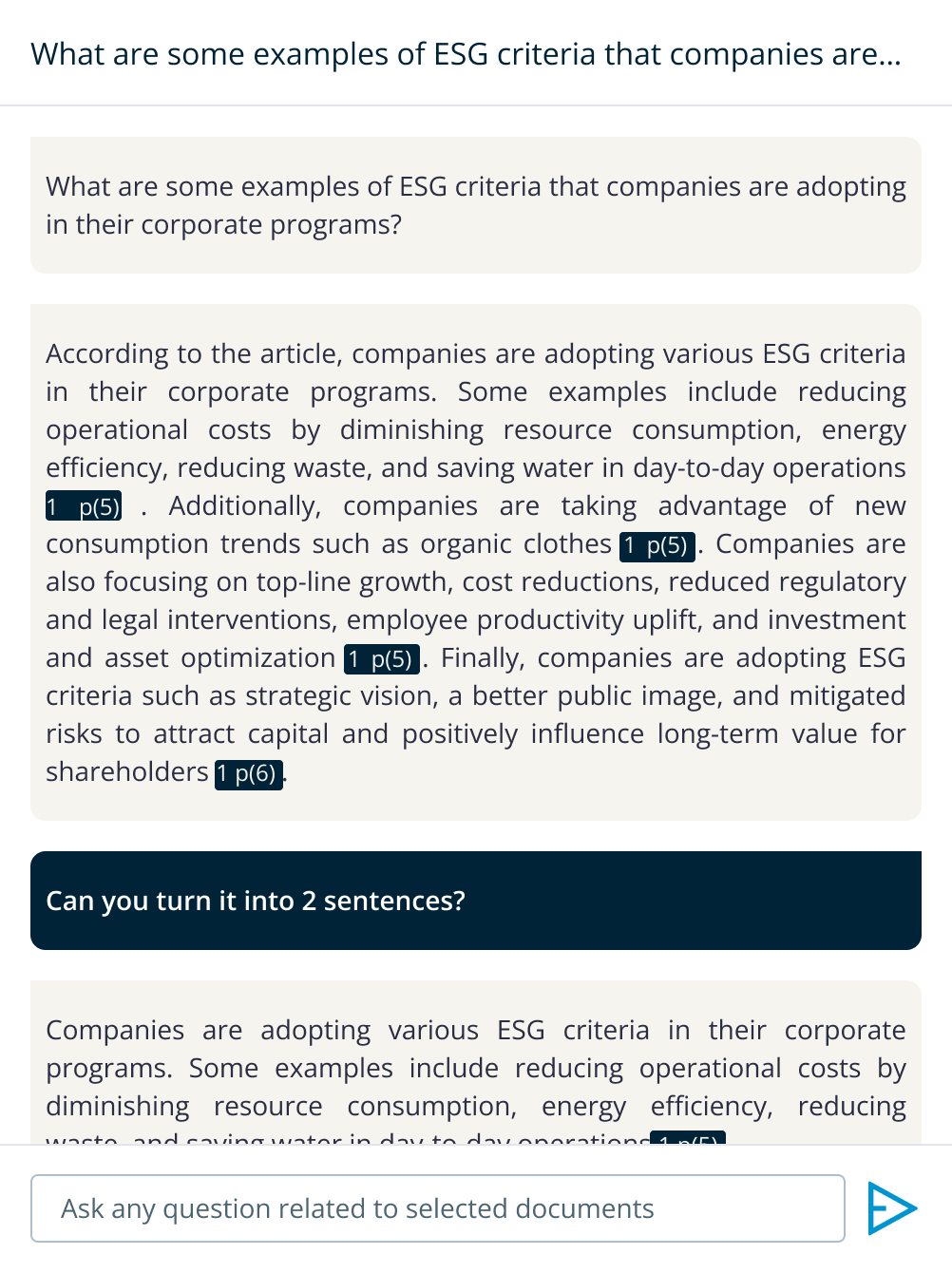 | Users can chat with the AI, which can provide answers with citations. These citations help users find the information in the referenced documents. |
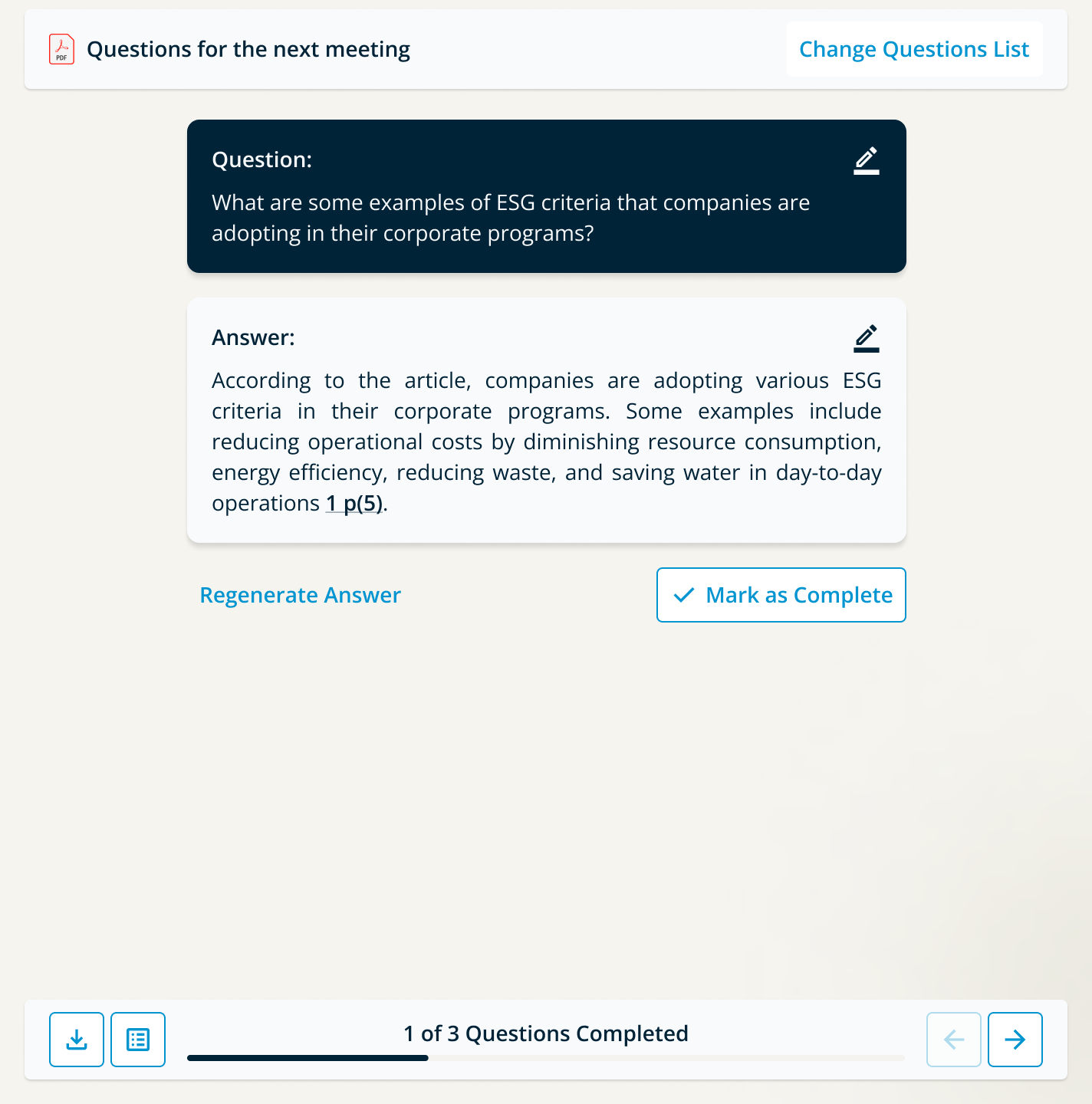 | The Questions and Answers section helps users identify which questions haven’t been answered yet. Users can also regenerate or edit answers if they are not satisfied with the current responses. |
Development Phase
Building a PDF Chatbot with Next.js and Nest.js
Imagine a chatbot that can not only hold conversations but also answer your questions based on the content of uploaded PDFs. This article guides you through creating such an application using Next.js for the frontend and Nest.js for the backend.
Project Structure
This project consists of two main parts: the frontend, using Next.js, which handles the user interface and interaction; and the backend, using Nest.js, which manages data storage, communication with the AI service, and document handling.
Frontend Development with Next.js
Setting Up the Project:
- Use create-next-app to initialize a new Next.js project with your preferred options (e.g., TypeScript, CSS framework).
- Choose and configure a UI component library, such as Chakra UI or Material UI, for a consistent look and feel.
Component Design:
Design components for different functionalities:
- Documents Page: Users can list, upload, search, and delete PDFs.
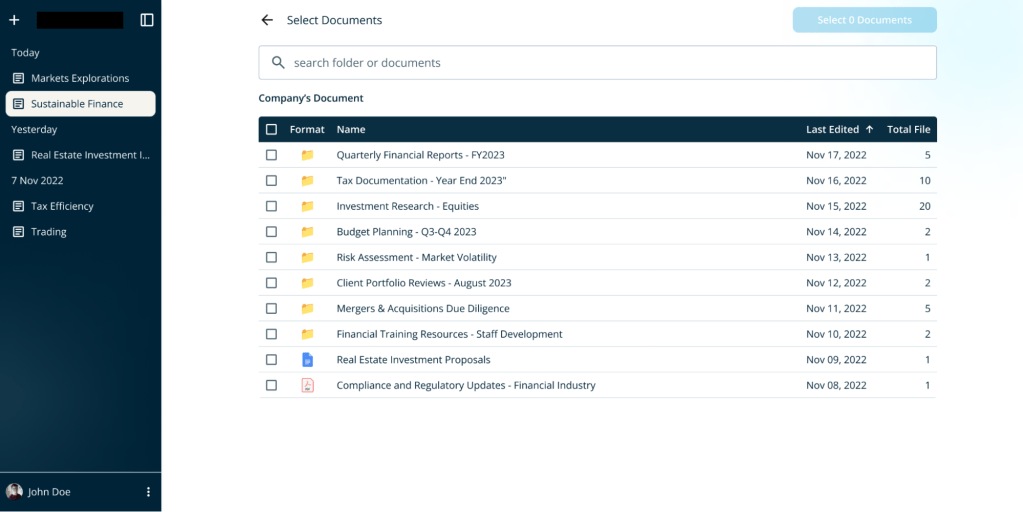
- Session Page: Users can create new chat sessions and select documents for analysis.
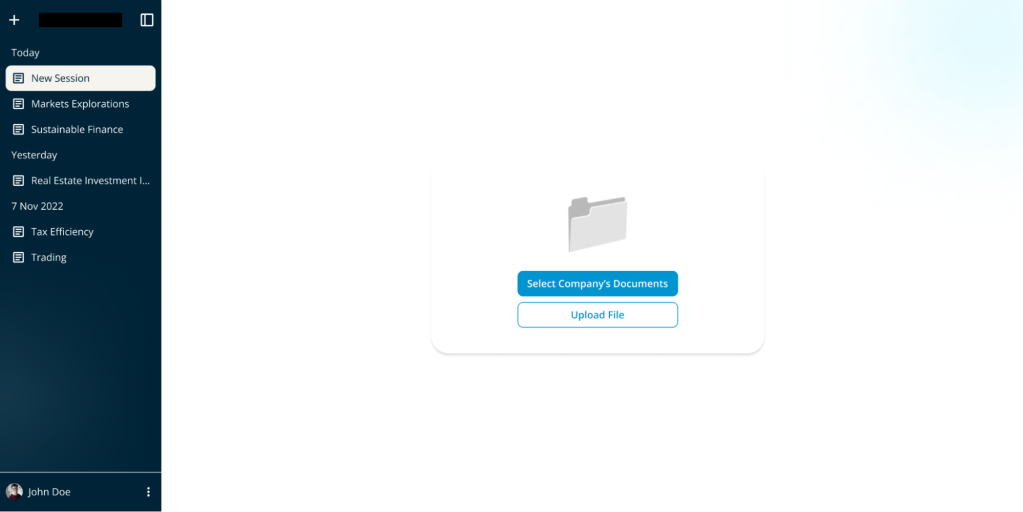
- Chat Session: Displays the chat history and a list of uploaded documents. Users can add or remove documents here.
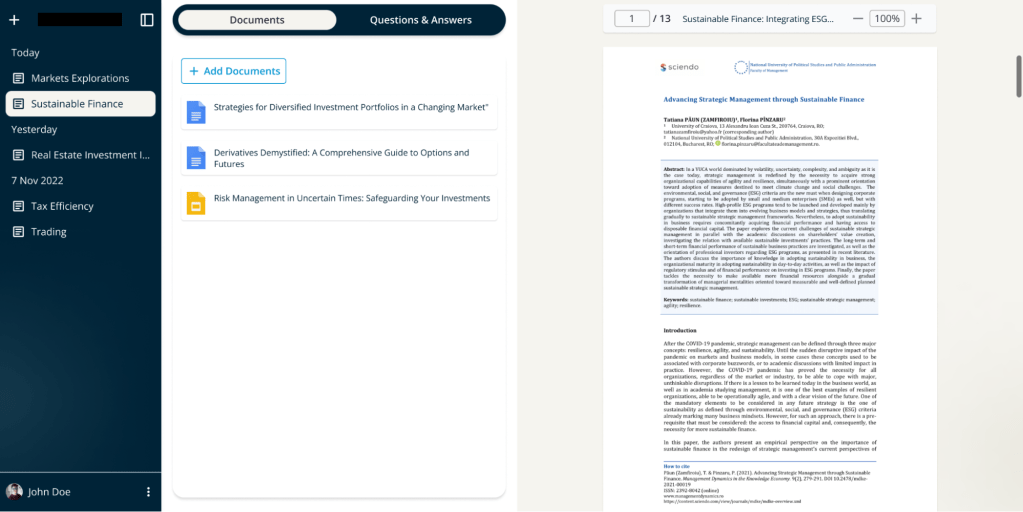
- Chat Section: Allows uploading Q&A list documents, generating answer lists based on uploaded PDFs, and asking custom questions.
- Question and Answer Thread: Users can view questions, answers, and citations, and potentially edit them.
Frontend Functionality:
- Implement the logic for user interactions within each component.
- Integrate libraries like react-pdf to display retrieved PDFs within the chat interface.
Backend Development with Nest.js
- Setting Up the Project:
Use the Nest CLI to create a new Nest.js project. - Database Integration:
Choose a database solution like PostgreSQL and set up Prisma as the ORM (Object-Relational Mapper) for interacting with the database; Define data models in prisma/schema.prisma to represent users, sessions, documents, questions, and chat history. - Data Storage:
Use Prisma to store user sessions, chat history, and document information in the database. - AI Integration:
Integrate an AI service to process PDFs and generate answers to questions; Use Axios to make API calls to the AI service; Store AI responses in the database for retrieval by the frontend. - Document Handling:
Choose a cloud storage solution like AWS S3 for securely storing and retrieving uploaded PDFs; Implement logic to upload and download documents from the storage service.
Conclution
By following these steps, you’ll have a solid foundation for building a functional PDF chatbot application. Remember to customize and extend functionalities based on your specific requirements, such as user authentication, advanced search functionalities within PDFs, and improved chat interfaces.

 TKA Dev Blog